



MyChart Mobile App, Website and Device Troubleshooting
Sometimes, you might run into snags or have questions when downloading, installing or using the MyChart Mobile app or using the website. We’re here to help, whether you’re an iPhone, iPad, Mac, PC or Android device user.
Understanding the MyChart Mobile App
The MyChart® mobile app is free, and it’s easy to download, install and use. If you have an iPhone 7 or newer, or you use another iOS device or an Android device running OS Marshmallow v6.0 or later, you’re all set.
The app gives you access to your test results, medications, vaccine history, past and upcoming appointments and more — right on your mobile device. You can also activate a new account and reset your password through the app.
Think of the MyChart app as a condensed version of the MyChart website. If you can’t find something on the mobile app, log in to MyChart on a web browser like Chrome or Edge for the full experience.
Downloading and Installing the MyChart Mobile App
You can download the MyChart app from Apple’s App Store℠ or Google Play®. Here’s how:
- Open the App Store or Google Play on your mobile device.
- Search for MyChart.
- Download and install the free MyChart app.
- Launch the app and select Cleveland Clinic as your healthcare provider.
You can also access the App Store or Google Play directly from our website. Note that you can sign in to the mobile app on only one device at a time.
Getting Ready To Use the MyChart Mobile App
It’s easy to set up the MyChart app. To start, log in using your MyChart username and password.
Setting a passcode
You can set a four-digit passcode to log into the MyChart app in addition to using your MyChart password:
- Search the main menu for Settings.
- Tap the option for Account Settings.
- Toggle the Use Passcode option on.
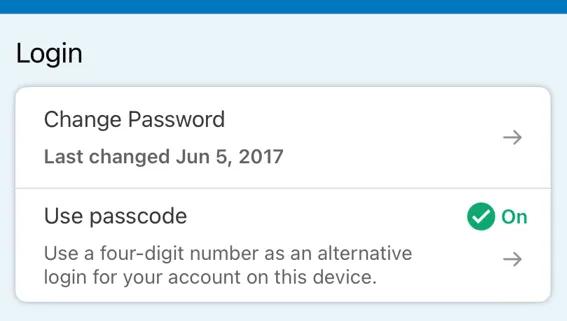
Image content: This image is available to view online.
View image online (https://assets.clevelandclinic.org/transform/d4bf605c-8912-4bf8-b93b-f74c7ff7e287/features-navigating-troubleshooting-1)
- Set a four-digit passcode.
You’ll need to do the last step twice to make sure you have entered the correct four-digit passcode. The next time you log into MyChart, you’ll see the Log in with Passcode option.
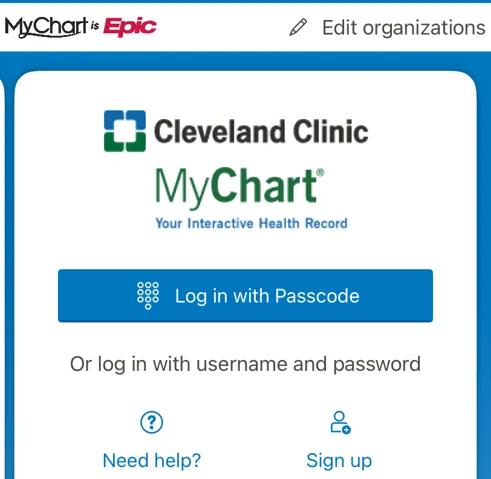
Image content: This image is available to view online.
View image online (https://assets.clevelandclinic.org/transform/aa5d0f7e-4f33-4e70-a256-7194ea3eefbb/features-navigating-troubleshooting-2)
You can also change the passcode on your account by using the Change Passcode option in account settings
Connecting More Than One Hospital in the MyChart App
Cleveland Clinic is one of many health systems that use MyChart, a product developed by the electronic medical record company Epic. If you see providers outside Cleveland Clinic, you can add those organizations to the app, too.
Adding multiple hospital accounts
- Go to the app’s login screen.
- Tap Edit Organizations in the upper right corner.
- Tap Add Another Organization at the bottom of the screen.
- Search for the hospital system by name, state or ZIP code.
- Find the hospital’s logo and tap Add Organization to add it to your list.
- Repeat these steps for each hospital system you want to include.
Tip — Each time you open the MyChart app, check that the correct hospital appears on the home page before logging in. If you don’t see it, swipe left to view the other organizations you’ve added.
Linking your hospital accounts in the app
After adding hospital systems to your MyChart app, you’ll need to link your records from each organization. Follow these steps:
- Log in to the MyChart mobile app.
- Use the search bar at the top and type Link.
- Select Link My Accounts from the results.
In the Discover tab of this section, you can also watch a learning video called “Linking Your Accounts.” Tap the play arrow to start the video and learn how to bring your health information together in one place.
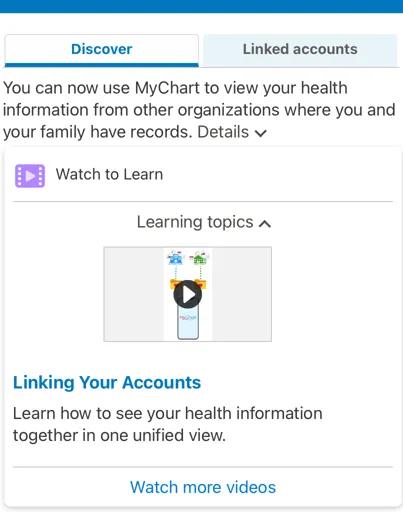
Image content: This image is available to view online.
View image online (https://assets.clevelandclinic.org/transform/f6baa2d0-0c79-40f2-a9d8-358609755b69/features-navigating-troubleshooting-3)
Basic Troubleshooting for the Mobile App
Many technical issues can be resolved with a few simple steps:
- Make sure your device is connected to a secure Wi-Fi or cellular network.
- Log in to your account and verify that each character of your password is entered correctly.
- Perform a hard restart of your device according to the manufacturer’s instructions.
- If problems continue, uninstall the app, restart your device and reinstall the app.
If you’re still having trouble using the MyChart mobile app, contact MyChart Support for additional help.
Managing Linked Apps and Devices in Your Account
You can view the devices that have logged in to your MyChart account through the mobile app or by logging in through a web browser.
- Go to the Menu button.
- Search for Linked Apps and Devices and select it.
This will take you to the Manage My Linked Apps and Devices page. Here you can see any apps connected to your account. You can also review verified logins and devices that have accessed your account in the past, including:
- Trusted devices: Devices that regularly log in without requiring two-step verification
- Other devices: Devices that have logged in only once or occasionally and require two-step verification
Devices automatically appear here when you log in to your MyChart account on them. You can choose to forget a device to remove its saved login and push notification preferences.
Troubleshooting for Full-Feature MyChart on Web Browsers
If you use MyChart in a web browser, you might occasionally run into technical issues related to your browser or device settings. Some common problems include:
- MyChart appears to be down.
- An error message appears when loading the login page.
- The page appears distorted or doesn’t display correctly.
- You see a blank screen when logging in or opening the Message Center.
- Buttons or features on the page don’t work (for example, you can’t send a message).
- You see an error stating that session cookies are disabled.
Basic browser troubleshooting
If you experience any of the issues above, try these steps:
- Make sure you’re using a supported web browser, like Google Chrome or Microsoft Edge.
- Refresh the page or restart your browser.
- Clear your browser’s cookies and cache.
- If the issue continues, try logging in using a different browser.
To quickly refresh your browser:
- Windows: Press Ctrl + F5 or Ctrl + Shift + Delete
- Mac: Press Command + R
If you see an error that says session cookies are disabled, check your browser settings and make sure cookies are enabled.
If the problem continues
If you can log in but are automatically logged out or experience other issues, visit the MyChart FAQs page for additional troubleshooting steps.