



MyChart Messaging
MyChart® messaging helps you stay in touch with your providers. From asking questions and following up after an appointment to sharing health updates, it’s a convenient and secure way to communicate with your provider without scheduling an appointment.
Use messaging for routine questions, prescription requests or updates about your health. If you feel something is urgent, contact your provider’s office directly or get immediate care.
Who You Can Message
You can message any doctors, nurse practitioners or physician assistants you’ve seen for appointments over the last three years (36 months). Qualifying visits that establish a relationship with a provider and allow you to message them include:
Regular office or virtual visits
- Wellness visits
- Occupational, speech or physical therapy
- Mental health office and virtual visits
- Prenatal and post-partum office visits
- Care coordination
- Hospice care
- Remote patient monitoring
MyChart messaging doesn’t include
- Nurses, medical assistants and support staff at your provider’s office
- Residents and fellows who support your providers
- Emergency department providers
- In-hospital care teams
Message Your Provider
All messages you send to your provider’s office are secure. Whether you have a question, need clarification or want to discuss a nonurgent medical concern, you can feel confident reaching out to your established providers and receiving a response from a member of the healthcare team within three business days.
If you need a diagnosis for a new health issue, please schedule an appointment or complete an eVisit instead of sending a MyChart message. eVisits are available in MyChart as a convenient, secure way to access Cleveland Clinic Express Care providers for select common health problems and conditions.
Send a message
To send a message, you can:
- Go to Messages.
- Click on Send a Message.
- Select the provider you want to reach.
- Write and send your message.
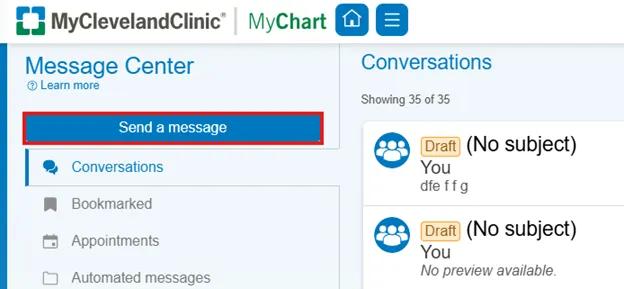
Image content: This image is available to view online.
View image online (https://assets.clevelandclinic.org/transform/9d85dc92-a44c-4086-86f6-2317044afb35/messaging-1)
Troubleshooting Sending Messages
If you’re having trouble messaging a provider or need help managing your recipient list, the following tips and guidance can help you navigate common MyChart messaging issues.
Adding or removing a provider
If you need to add or remove a provider from your messaging list, here’s what you should know:
- You can’t manually add or remove a provider in MyChart.
- A provider will automatically be added to your messaging list after a qualifying office visit within the past 36 months.
- If a provider isn’t available to message, contact their office by phone until you complete a current office visit.
- Providers will automatically be removed from your messaging list 36 months after your last office visit.
Messaging after a resident or fellow visit
If you received care from a medical resident or fellow during your visit, you won’t see them in your MyChart messaging list even if they participated in the visit.
Contacting support staff
You can’t message nurses, medical assistants or front desk staff directly through MyChart. To communicate with office staff, please call the office.
Adding images and videos
You can attach up to five images or videos to your MyChart messages to help your provider better understand your question or concern.
Supported file types include BMP, DOC, DOCX, JPG, JPEG, PDF, PNG, TIF, TIFF, 3GP, 3GPP, AVI, MOV, MP4, MPEG, MPG and WMV. The maximum file size is 8 MB per photo/image and 65 MB per video.
To send one of the files, you’ll:
- Click Attach.
- Select the file you want to send.
- Click Open.
To edit the image description or document type, click the pencil icon in the Visit Media section. To delete an attachment, click the X on the image’s thumbnail.
Troubleshooting Receiving and Replying to Messages
If you’re having trouble receiving or replying to messages in MyChart, the guidance below can help you find missing messages and reply to your provider.
Can’t find messages
If a message you expected doesn’t appear in your Conversations list, here’s what to do:
- Log in to MyChart and go to Messages.
- Look for the message in your Conversations list (new messages appear in bold).
- If you don’t see one in MyChart, contact your provider’s office.
Can’t reply to a message
MyChart messages aren’t like email. You may not be able to automatically reply to a message from your provider’s office. They control whether you can reply.
If your provider allows replies, you have 30 days to reply before the option expires. If they’ve blocked replies:
- Send a new message through Messages.
- Contact the office by phone if the provider’s name isn’t on your recipient list.
- Request that the provider enable the reply feature on future messages.
Managing MyChart Messages
You can keep your inbox organized by archiving messages you’ve read and restoring them later if you need to access them again.
Deleting and archiving messages
MyChart doesn’t allow you to permanently delete messages, but you can archive those you’ve read to manage your inbox.
Archiving helps you keep your inbox tidy by moving messages you’ve already read out of your main Conversations list.
- Messages must be read before they can be archived.
- Select the message you want to archive, then click Archive in the top right of the message window.
- Once archived, messages will appear unbolded in your MyChart Inbox.
Restoring archived messages
If you need to access a message you previously archived, you can easily restore it to your Conversations folder.
In Message Center, click Archive in the left menu.

Image content: This image is available to view online.
View image online (https://assets.clevelandclinic.org/transform/1caf2135-2dd6-4951-838d-5f32617cb614/messaging-2)
- Select the message you want to restore.
- Click Restore Conversation at the top right.

Image content: This image is available to view online.
View image online (https://assets.clevelandclinic.org/transform/dda3a348-0a21-4fdb-a0cf-8206ab035157/messaging-3)
The message will move back to the Conversations folder.