



MyChart Login and Activation Issues
Having trouble accessing MyChart®? Whether you’re setting up your account for the first time or running into problems signing in, you can explore activation, login and security steps to help you get back to managing your health online.
Activate Your MyChart Account
Get started in MyChart by activating your account. There are a couple of ways you can do this:
MyChart instant activation
Click the link in your MyChart welcome email to activate your account right away. Here are things you’ll need to do once you click:
- Username: MyChart defaults to your email address, but you can delete it and type a preferred username.
- Password: This must be at least eight characters and include at least one number and one capital letter.
- Date of birth: Enter it in mm/dd/yyyy format.
- Agree to terms: Click on the box to agree to the terms and conditions.
- Submit: Click Submit to register.
- Confirmation: You’ll see a message that says, “You are now successfully signed up for MyChart.” Click the link to navigate to the MyChart website and log in to verify activation. On a mobile device, you can also click the Apple or Android™ store icons to download the app.
The instant activation link is good for 30 minutes once sent. If you exceed that time frame, the instant activation capability will expire. However, you can still use the link, which will take you to the traditional activation process. The activation code will automatically populate your username.
Traditional MyChart account activation
If you have an activation code but no email link, you can still sign up for MyChart. Follow these steps:
- Go to the MyChart website.
- Click the Sign Up Now button under the sign-in box on the right side.
- Enter your MyChart activation code.
- Enter your date of birth in mm/dd/yyyy format.
- Enter and confirm your email address.
- Click Next to continue.
- Set up two-factor authentication by following the prompts.
If you don’t have an activation code, click Sign up with your information to create your MyChart account. Follow the on-screen prompts to enter your details and set up your username, password and two-factor authentication.
Log in to MyChart
Having trouble logging into MyChart? Start here to try the easiest fixes first and get back to your account quickly.
- Check your username and password: Sometimes, a web browser or your mobile device can autofill these spaces incorrectly.
- Check your network connection: See if you can visit or log into other websites. Poor network connections can cause issues with logging in.
- Clear web browser cookies and cache: For Windows®, press the ctrl + F5 keys at the same time or ctrl + Shift + Delete at the same time. For Macs, press the Apple key + R or try the Command key + R at the same time.
You can also try logging in from a different device or web browser. If you’re using the MyChart app, try the website instead — or vice versa.
Recovering Your MyChart Account
If you can’t remember your username or password, don’t worry. These steps will help you log back into MyChart.
Click on Recover your MyChart Account at the link below to go to MyChart Account Recovery.
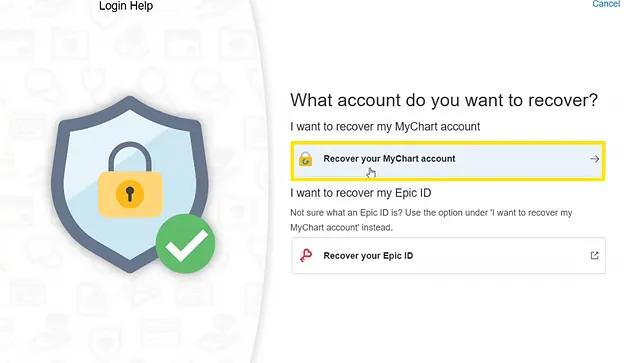
Image content: This image is available to view online.
View image online (https://assets.clevelandclinic.org/transform/fe28b7fc-9b52-425d-a0c4-22165e0ec75e/mychart-login-1)
Next, you’ll arrange to get a code to verify your identity. You can choose to have it sent to your verified phone number or email address on file.
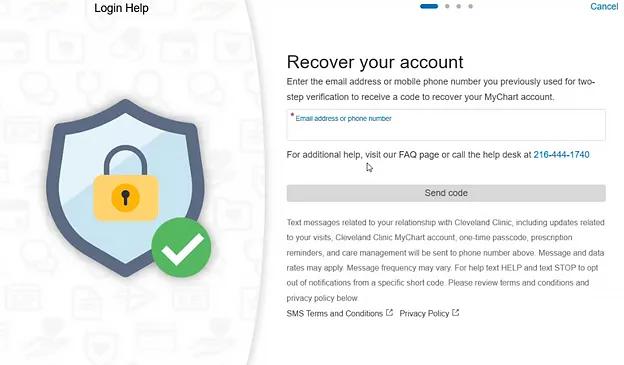
Image content: This image is available to view online.
View image online (https://assets.clevelandclinic.org/transform/7c0f93e9-ac93-4a0d-b2bc-32e609897ca2/mychart-login-2)
Once you receive the code, enter it on the following screen.
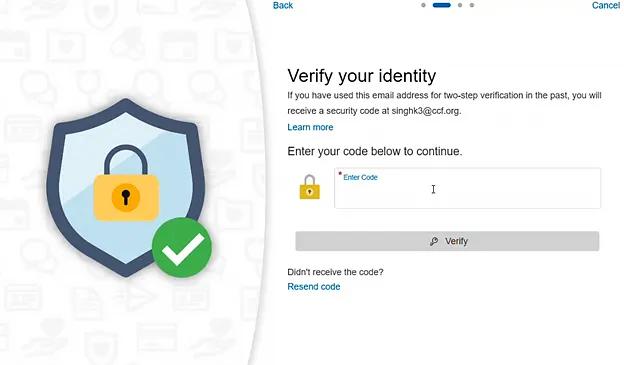
Image content: This image is available to view online.
View image online (https://assets.clevelandclinic.org/transform/05d58edc-e7f7-46ac-8530-48cbb09c85f0/mychart-login-3)
After you enter the code, you will see your forgotten MyChart username and the option to reset your password.
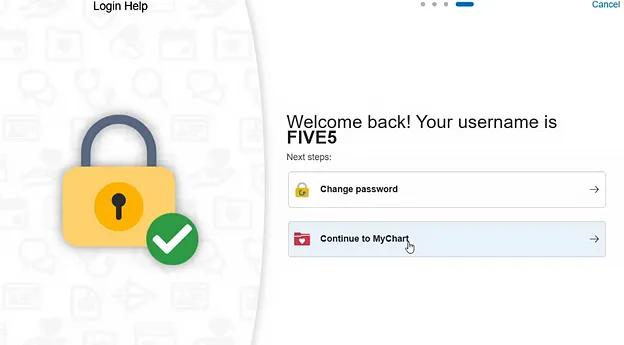
Image content: This image is available to view online.
View image online (https://assets.clevelandclinic.org/transform/e8c37146-7da6-48fc-aac3-dfa605214376/mychart-login-4)
MyChart Two-Factor Authentication (TFA or 2FA) and Security
To help protect your health information, MyChart uses two-factor authentication (TFA), also called two-step verification, when you log in. This added security step sends a unique code to your email or mobile phone to confirm it’s really you.
All MyChart accounts are automatically enrolled, and TFA can’t be turned off. It’s designed to add extra security to your account.
If you forget your password, you’ll complete the two-factor authentication process instead of answering security questions.
TFA set up
If you haven’t set up two-factor authentication for your MyChart account, when you try to log in, you should see the screen below:
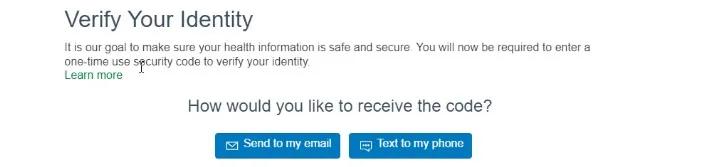
Image content: This image is available to view online.
View image online (https://assets.clevelandclinic.org/transform/c7ac5ab0-bc17-4509-b095-9902de32ae96/MyChart-Login-and-Activation-Issues-Verify-Identity)
You’ll receive your verification code at the email address or phone number on file in your MyChart account. If you choose Text to My Phone, the message will come from 27182. Don’t worry — it’s not spam.
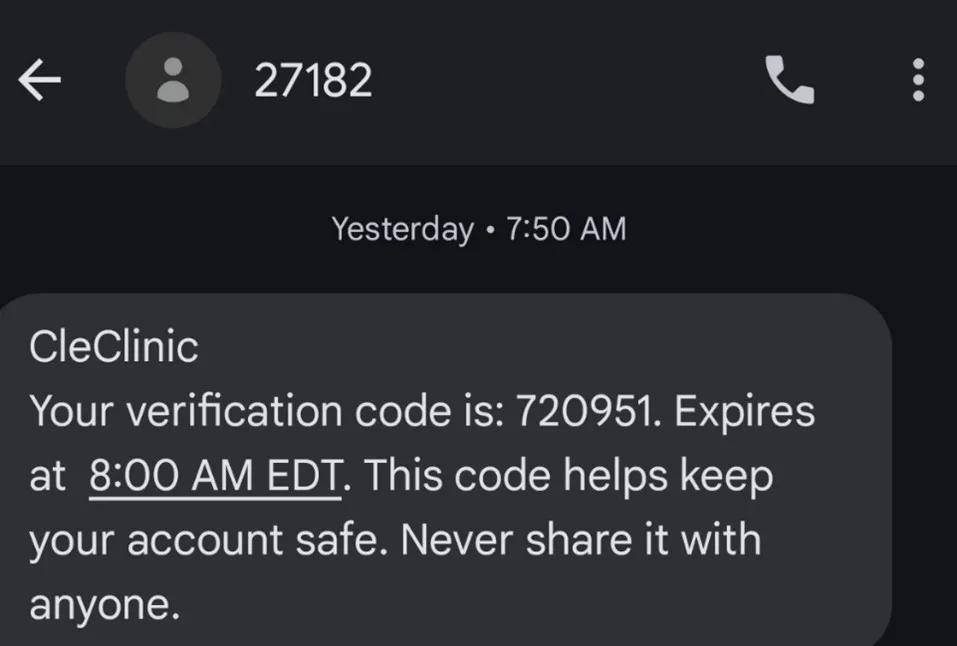
Image content: This image is available to view online.
View image online (https://assets.clevelandclinic.org/transform/9fdfd05c-df2c-4022-a5e6-70f7cc6adbe6/MyChart-Login-and-Activation-Issues-Text-Code)
Once your code is sent and received, just enter it on the screen that appears to complete your login.
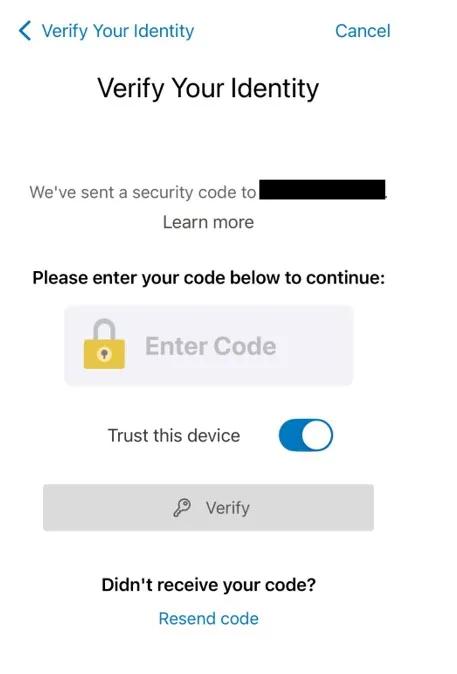
Image content: This image is available to view online.
View image online (https://assets.clevelandclinic.org/transform/29c175ad-2274-43d0-a20c-30bd56b9324a/MyChart-Login-and-Activation-Issues-Enter-Code)
If you don’t receive a code, try these steps:
- For email codes, switch to text message or vice versa, and check your junk or spam folders.
- For text codes, make sure the number 27182 isn’t blocked on your phone.
- If you’re using the website or app, try sending the code from the other version.
- Try logging in from a different device.
If you’ve tried these steps and still haven’t received a code, we may have the wrong email address or phone number on file. Contact MyChart Support at 866.915.3383 to update your information.
Trusted devices
You can trust a device, which means you won’t need to enter a two-factor verification code every time you log in from that device. Both mobile devices and desktop browsers can be set up as trusted devices, and they stay active for 365 days, or one year.
When you log in with two-factor authentication, Trust this Device is turned on by default. If you’re using a device that isn’t yours, you can click the toggle to turn it off.
Notification confirmations
If it’s been 30 days since you last confirmed your email, a notification will appear when you log in. From that window, you can confirm your email and choose to turn on email notifications. You can also go to Notification Settings to manage them in more detail.
Lost or stolen device
If you can’t receive a two-step verification code because your device is lost or stolen, call technical support at 866.915.3383.
MyChart Passkeys
Passkeys are a secure and convenient way to log in without typing your MyChart password across devices.
How passkeys work
Passkeys are encrypted digital keys that let you log in to MyChart on a desktop or mobile browser using your fingerprint, face or personal identification number (PIN). You can save them on your computer, in your phone’s password manager or in a security key (a small, external device that looks like a thumb drive).
This tool also lets you log in across devices, for example, by scanning a QR code on a desktop browser with your mobile device. Passkeys aren’t available in the mobile app; on the app, you can use biometrics or a PIN to sign in.
MyChart passwords still exist as a backup login method, but if you set passkeys, you can log in without entering your password. If you reset your password, you’ll need to set up your passkey again.
Create a passkey
To set up a new passkey, follow these steps in a web browser:
- Log in to MyChart on a web browser.
- Go to account settings (search the menu to find it).
- Go to manage passkeys at the top of the page.
- Select “Add new passkey.”
- Follow the prompts from your operating system or browser to add the passkey.
Rename a passkey
If you want to give an existing passkey a new name, use these steps:
- Log in to MyChart on a web browser.
- Go to account settings and then manage passkeys.
- Select the pencil icon next to the passkey you want to rename.
- Enter the new name.
Remove a passkey
To delete a passkey you no longer need, follow these instructions:
- Log in to MyChart on a web browser.
- Go to account settings and then manage passkeys.
- Select “Remove passkey” on the passkey you want to remove.
Log in with a passkey
To sign in using a passkey, you can:
- Select the username field to see the auto-fill prompt with your username and associated passkey.
- Or select “Log in with passkey” next to sign up below the login fields.
Operating system passkey support
Passkeys are supported on Windows, iOS and Android. You may have more than one passkey manager on your device. On some mobile devices, such as Samsung phones, you might need to select “More Options” to choose the correct passkey — for example, Samsung Pass or Google Password Manager.
If you have questions about passkeys or operating system support, check out your OS support site for guidance.
Account Lockout
MyChart tracks failed login attempts separately on known and unknown devices. This helps reduce unnecessary lockouts by letting you continue logging in from devices you’ve previously used.
Accounts will lock after a certain number of failed login attempts within a set timeframe. Locked accounts will automatically unlock after a specific period.
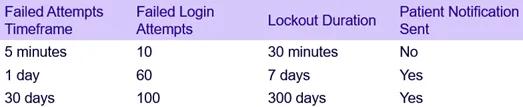
Image content: This image is available to view online.
View image online (https://assets.clevelandclinic.org/transform/6d2390c6-e49e-48f8-aa00-b2ec8ddd8924/mychart-login-5)
Deactivate Your MyChart Account
You can now deactivate your MyChart account without calling support. You’ll find the option in these locations:
- Website: Select Menu, then Security Settings.
- MyChart Mobile app: Tap on Menu or your profile icon, then Account Settings.