



MyChart Billing
Did you know you can check your Cleveland Clinic account balance and pay your bill online?
MyChart Billing lets you see your account details and pay bills right from MyChart. You can also choose how you want to get updates — by email or text — for things like balance alerts, billing statements, payment reminders and confirmations.
Accessing MyChart Billing Information
You can easily view your child’s or your account and billing summary in the primary account holder’s MyChart portal. This might be your account or another family member’s.
Who is the primary account holder?
The primary account holder (sometimes called the guarantor) is the person officially responsible for a patient’s billing account at Cleveland Clinic. This is the person listed during registration for each visit.
- Even if you pay household bills, you might not be the primary account holder for Cleveland Clinic statements.
- Each visit can have a different primary account holder, depending on registration.
Knowing who the primary account holder is will help you log in to MyChart, view account balances and pay bills.
How do I view my billing summary?
If you’re the primary account holder, log in to your MyChart account and select Account Summary at the top of the page. You can also go to Menu and select Account Summary. From there, you can see your balances, statements and payment options.
How do I view a child’s billing summary?
Billing for minors is linked to the primary account holder for that visit. If you don’t see a child’s billing information, it may be because:
- You’re the primary account holder but don’t have a MyChart account.
- You’re not the primary account holder.
If you have a MyChart account and are the primary account holder for your child but still can’t see the bill, call Billing Customer Service at 866.621.6385.
If you aren’t the primary account holder but need to see or pay a child’s bills, you’ll need proxy access — a way for someone who isn’t the primary account holder to view and manage a patient’s MyChart account. Once proxy access is granted, you can see the child’s billing information.
If you’d like to become the primary account holder or transfer this responsibility to someone else, contact Billing Customer Service.
Payment Information
You can also use MyChart to manage how you receive billing statements and make payments online.
Paperless billing
All Cleveland Clinic patients are automatically opted into paperless billing via MyChart system settings. If you’d like to opt out of this and receive printed paper statements, here’s how to do it in MyChart:
- Go to Account Summary and select Paperless Billing.
- Click the hyperlink near the bottom of the page that says Cancel Paperless Billing
- Click the Receive Paper Statements button.
- You’ll see a confirmation screen letting you know paper statements will be mailed to you.
Ways to pay
When making an online payment through MyChart, there’s a $5 minimum. When you log in, you can pay your bill using:
- Credit or debit card
- Bank account transfer
- Apple Pay
- Google Pay
PayPal isn’t available at this time.
Pay as a guest
If you don’t have a MyChart account, you can still pay online as a guest if you have the billing account number and primary account holder’s last name. Go to the MyChart homepage and click on Pay Bill as Guest. Fill in the required information and submit it.
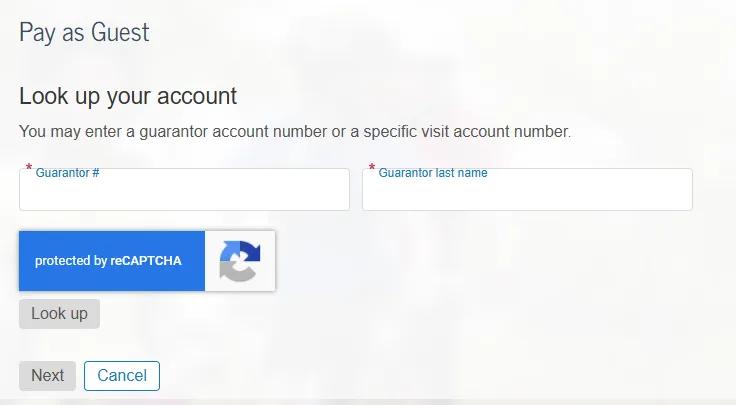
Image content: This image is available to view online.
View image online (https://assets.clevelandclinic.org/transform/77128e96-f3b2-4c08-aac1-f1b0e455d08e/mc-billing-pay-as-guest)
Payment plans
If you’re eligible for a payment plan, you’ll find a Set up payment plan button on the guarantor account tile.
Tips and Troubleshooting
If you’re having trouble making a payment in MyChart, you may see one of these error messages:
- “There was an error processing your payment method.”
- “Payment failed. A problem was encountered while processing your credit card.”
If this happens, check that the credit card information you entered is correct. Payments won’t go through if it isn’t.
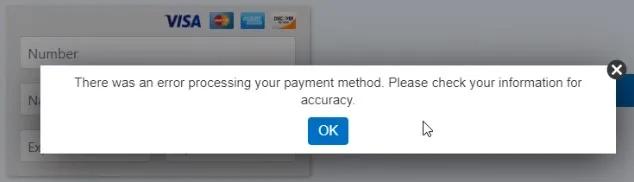
Image content: This image is available to view online.
View image online (https://assets.clevelandclinic.org/transform/a3392e52-098a-4553-9e4d-a36522d33614/mc-billing-errors)
Red “X” when entering payment information
If you see a red “X” when filling out payment fields, your web browser may be automatically filling in incorrect information.
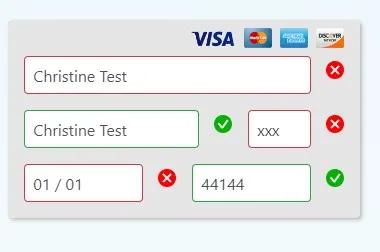
Image content: This image is available to view online.
View image online (https://assets.clevelandclinic.org/transform/7cbfd831-9936-471c-8efd-66b64ffe19f5/mc-billing-red-x)
Clear any prefilled information in the payment fields and enter the details manually to make sure everything is correct.
Financial and Billing Help
Have questions about your balance, charges, insurance coverage or payments? Our Billing Customer Service team is here to help. You can use the Contact Customer Service link in your MyChart Account Summary to send a message.
If you prefer to talk with us by phone:
- United States: Call 866.621.6385 or 216.445.6249, Monday through Friday, 8 a.m. to 5 p.m. You can also schedule a Customer Service callback by going to www.clevelandclinic.org/billing and then selecting the orange Schedule Customer Service Callback button in the upper right corner of the screen.
- London: Call on +44 20 3423 8900, Monday through Friday between 9 a.m. and 5 p.m.