



MyChart Appointment and Scheduling Troubleshooting
Did you know you can manage, book, request and cancel appointments in MyChart? You can even check in when you arrive for one. Here’s all MyChart has to offer when it comes to your medical appointments — and how to keep it all straight.
Scheduling Features
MyChart makes it easy to schedule new appointments. You can:
- Book appointments directly with providers
- Request appointments if direct scheduling isn’t available
- Use ticket or open scheduling when applicable
If you’ve registered your insurance in your MyChart account, you can schedule or request appointments with participating providers. If you’re self-pay or don’t have coverage, you’ll need to meet with a Patient Financial Advocate before scheduling.
Direct scheduling for existing patients
Use MyChart’s direct scheduling feature to pick a time and book your own appointment for office visits, vaccines and annual wellness exams with:
- Internal Medicine
- Family Medicine
- Pediatrics
Some specialists may also be available to schedule online. To use direct scheduling, you must be established with the provider and have had an in-person office visit within the past three years.
If your provider isn’t listed or you run into any issues, contact MyChart Support for help.
Open scheduling for new patients
Open scheduling lets you request an appointment with a provider even if you’ve never seen them. You can access open scheduling through MyChart or via tools on clevelandclinic.org, like the Find a Provider tool.
If you’re using MyChart, go to Schedule an Appointment and select the service that fits your needs:
- Primary Care
- Express Care Virtual Visit
- eVisit
To schedule a visit with a provider who’s new to you, click on All Other Options.
Once you submit your request, a team member will confirm your appointment.
If you don’t see the provider you’re looking for or have questions, contact MyChart Support for help.
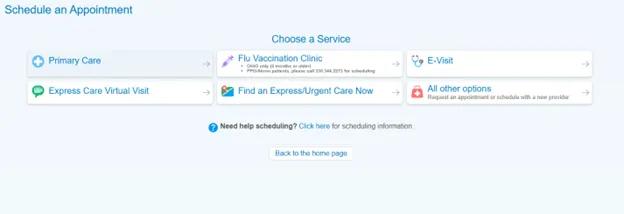
Image content: This image is available to view online.
View image online (https://assets.clevelandclinic.org/transform/06f502c6-63f9-40fa-a40e-0add0745645e/mychart-1-open-scheduling)
Ticket scheduling
Ticket scheduling lets you book appointments your provider has specifically requested, including lab orders like bloodwork.
When a provider places an order that uses ticket scheduling, MyChart automatically generates a scheduling ticket. You’ll receive a notification by email or on your mobile device and see the order in MyChart. Once you schedule the appointment and link it to the order, it will no longer appear on your Upcoming Orders page.
Patients without a MyChart account can still receive scheduling tickets for procedures set up to generate them automatically. You’ll get an email letting you know a ticket is available, along with a link and instructions to schedule.
If you choose not to schedule a ticket, you may be asked to provide a reason. Once declined, the ticket is removed from your health feed and the Upcoming Orders page.
Request an appointment
Requesting an appointment can be used for any type of provider. This request doesn’t automatically schedule your visit.
To request an appointment through MyChart for scheduling, you must have had an office visit with the provider within the past three years. If you’ve never seen the provider, or it has been more than three years since your last visit, contact the provider’s office or reach out to the Appointment Center. In Ohio, call 866.320.4573. In Florida, call 877.463.2010.
Once you submit the request form, your provider’s office will receive a message. Our team will review your request and reply within 48 hours with your appointment details or further instructions.
If your need is urgent, call the provider’s office directly.
Scheduling appointments if you’re self-pay or uninsured
If you’re self-pay or don’t have insurance in your medical record, you can’t schedule through MyChart. You’ll be redirected to set up a call with a Cleveland Clinic Patient Financial Advocate.
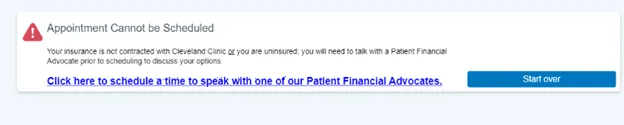
Image content: This image is available to view online.
View image online (https://assets.clevelandclinic.org/transform/31c0f0d5-afed-4eef-9e1a-a53dfcfea5ea/mychart-3-self-pay-patients)
If you’re a new patient and are scheduling through our Find a Provider tool or Open Scheduling on clevelandclinic.org, you’ll be asked whether you have health insurance.
- If you answer no, you’ll see a message directing you to call a Patient Financial Advocate.
- If you answer yes, but your insurance isn’t yet in your medical record, you’ll still need to connect with a Patient Financial Advocate to update your record by calling 855.831.1284.
Managing Your Appointments
Once you have an appointment, MyChart makes it easy to manage it. You can cancel or reschedule visits, check in when you arrive and view upcoming or past appointments — all in one place.
Canceling an appointment
You can cancel most appointments directly in MyChart up to 24 hours before the scheduled time. To do this:
- Go to Upcoming & Past Appointments.
- Select the appointment you want to cancel.
- Scroll to the bottom of the Appointment Details page and click Cancel Appointment.
- Confirm the cancellation.
We typically review and reply to these requests within eight hours. Some appointments are canceled at once.
If your appointment is within 24 hours, you can’t cancel it through MyChart. In that case, call the provider’s office directly to cancel.
Rescheduling an appointment
Some visit types allow you to reschedule directly in MyChart. Here’s how to do it:
- Go to your upcoming appointments and select the appointment you want to change.
- If rescheduling is available, you’ll see a Reschedule Appointment link in the appointment details.
- Click the link to view available appointment times.
- Choose a new time and complete the scheduling process.
- Once you click Schedule It, the appointment will update to the new day and time, and the previous one will be canceled.
If you don’t see a link to reschedule, this visit type can’t be rescheduled in MyChart. In that case, call the provider’s office to change your appointment.
If you start the rescheduling process and don’t find a time that works, you can exit by clicking anywhere on the MyChart page and then select Leave Page. The exact steps may vary depending on where you are in the workflow.
Appointment wait lists
You may be able to use the wait list option to schedule an earlier visit. This applies only to some types of appointments in these specialties:
- Center for Connected Care
- Concierge Medicine and Executive Health
- Dermatology
- Diagnostic Imaging and Endoscopy
- Digestive and Liver Care
- Ear, Nose and Throat (Otolaryngology)
- Endocrinology
- Eye Care
- Genetics and Genomics
- Geriatrics
- Heart Care
- Neurology
- OB/Gyn
- Orthopaedics
- Pediatrics
- Plastic Surgery
- Primary Care (Internal and Family Medicine)
- Rehabilitation
- Rheumatology
- Urology and Kidney Care
- Holistic Medicine
If you’re on a waitlist to move an appointment to an earlier date, MyChart can send a notification when a slot is available. Notifications may arrive by email, text or app push notifications, depending on your communication preferences.
To receive an earlier appointment offer, you must be on the waitlist. You can ask to be added to the list at your provider’s office, by contacting the Appointment Center or by adding yourself in MyChart. Here’s how to do that:
- Go to Upcoming and Past Appointments.
- Click on your future appointment.
- Click Get on the Waitlist.
- Notifications are automatically enabled for MyChart users on the waitlist.
- If notifications are disabled, you won’t receive offers for earlier appointments.
- Click the link in the notification and log in to MyChart to review and accept the new time.
- Accepting the slot will automatically schedule the new appointment and cancel your original one.
- Use the same path to remove yourself from the waitlist if you don’t want offers.
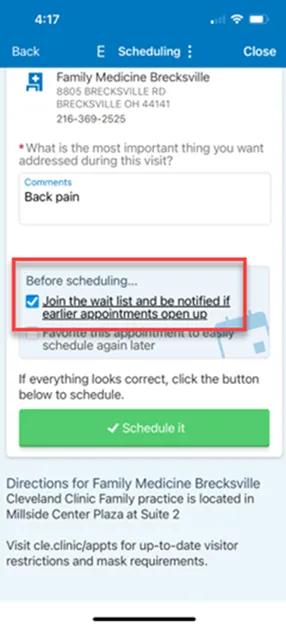
Image content: This image is available to view online.
View image online (https://assets.clevelandclinic.org/transform/0aefb77a-9bda-4a3b-8c9e-ca2471648827/mychart-5-waitlist)
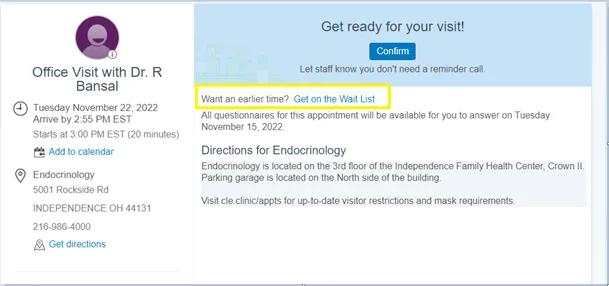
Image content: This image is available to view online.
View image online (https://assets.clevelandclinic.org/transform/9ef65b19-98b1-43f1-8777-4c14c1d38256/mychart-6-waitlist-part-2)
Viewing appointments
To view your appointments in MyChart:
- Click on Visits
- Scroll down to see Upcoming Visits
Appointments within the next seven days appear first, with later visits listed below. You can filter the list to find specific appointments. If a scheduled visit doesn’t appear, the department may have blocked it, or the provider’s office may still be reviewing it.
Past appointments, visit summaries and progress notes are available in MyChart for up to three years. Behavioral health visits appear only in Upcoming Appointments to protect privacy.
For information older than three years, contact Health Information Management (HIM) at 216.444.5580. Call your provider’s office with questions about a specific appointment.
Cancelled or no-show appointments may also appear in MyChart, though updates may take time to process.
Appointment reminders
A week before your scheduled appointment, we’ll send you a reminder by email, phone or both. It’s important to:
Make sure to check spam/junk folders.
- Add clevelandclinic.org to your email address book.
For phone reminder problems, contact the Appointment Center for help.
Opting out of notifications
Active MyChart users can log in, go to the Menu and select Communication Preferences to update and manage which notifications they want to receive.
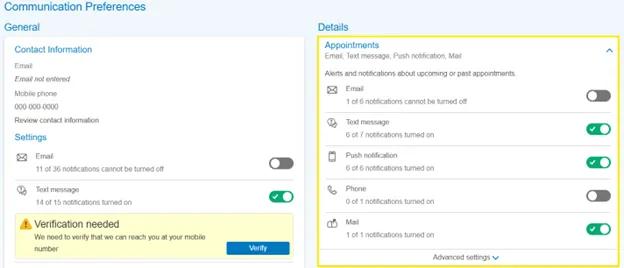
Image content: This image is available to view online.
View image online (https://assets.clevelandclinic.org/transform/aae30e0c-55ce-45db-9065-9c19121f2edd/mychart-2-opting-out-of-notifications)
If you don’t have a MyChart account, call MyChart Support, and an agent can update your communication preferences for you.
Check-In Features
MyChart makes it easy to let your clinic get ready for your appointment, from pre-visit questionnaires to tools that let them know you’re on your way.
Updating your information during PreCheck-In
PreCheck-In lets you update details like your address, phone number, allergies, medications and health conditions in MyChart. You can do this up to seven days before your appointment. The process closes 24 hours before your visit.
When PreCheck-In is available, you’ll see an icon in Upcoming Appointments. A few things to keep in mind:
- PreCheck-In doesn’t replace checking in at the kiosk or front desk or bringing important items like your medication list.
- Our staff will review any updates you submit, including demographic changes. Once approved, these changes will automatically update in your health record.
Answering pre-visit questionnaires
For some appointments, we may ask you to complete a questionnaire related to your visit during PreCheck-In. This replaces paper forms that were previously filled out at the clinic.
You can complete the questionnaire in MyChart before your appointment. In some cases, you may also be able to fill it out on a tablet when you arrive.
When a questionnaire is available:
- You may receive an email letting you know forms are ready to complete in MyChart.
- A reminder may also appear on your MyChart homepage or in your appointment details with a link to the questionnaire.
A few things to keep in mind:
- Questionnaires are available in MyChart up to seven days before your visit.
- They’re assigned based on visit type, provider and whether you’ve completed one recently. Not every visit will include a questionnaire.
- If you start a questionnaire but don’t send it, you can return to it through your appointment details.
Once you submit it, you can’t change your answers in MyChart, but your provider can update them during your visit.
Paying copays in MyChart
MyChart gives you the choice to pre-authorize your copay before your appointment. You can also skip this step and pay in person at your visit. In either case, we don’t charge your credit card until you arrive and check in at the desk.
- If you have questions about your copay or insurance, skip prepayment and pay at the front desk. For virtual or video visit copays, call 855.831.1284 to speak with a Patient Financial Advocate.
- If your provider’s staff can’t see your preauthorized copay at check-in, contact MyChart Support.
- If you enter incorrect credit card information, MyChart will prompt you to update it. If the problem continues, you can skip prepayment and pay at the front desk. Staff will be available to help with any questions.
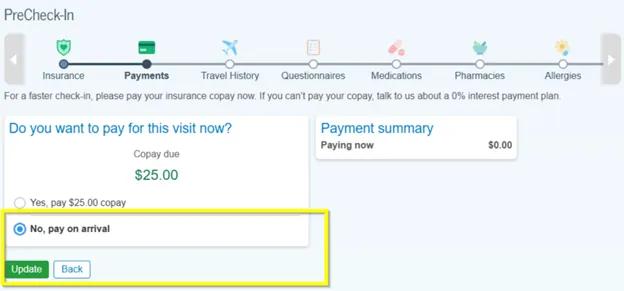
Image content: This image is available to view online.
View image online (https://assets.clevelandclinic.org/transform/69402a3c-f469-462a-b19e-36974e1a0059/mychart-4-copay)
Using Hello Patient
Hello Patient is a way to let your care team know you’ve arrived for your appointment using the MyChart Mobile app and geolocation features on your device. Your location settings must be set to Always for this tool to work.
Using Hello Patient, you can check in two ways:
- Geolocation self-arrival: When you enter the area near your appointment location, you may receive a notification asking you to confirm your arrival.
- Patient-initiated self-arrival: Open the MyChart app, find your appointment and tap I’m Here.
Follow the on-screen prompts to complete your arrival.
Using On My Way for Express and Urgent Care visits
Using the MyChart website or mobile app, log in and go to Menu. Select Find an Express/Urgent Care Now and choose Express Care or Urgent Care. Pick a location from the list or enter a ZIP code. Available locations show a blue pin — tap it to select the clinic.
Start the pre-visit process by answering “How long until you’ll arrive?” Then, click “I’m on my way” and complete the required information, including your reason for the visit.
You can also start On My Way from a web browser by visiting the Express or Urgent Care page, selecting a clinic and clicking Reserve your spot. Follow the on-screen prompts to confirm your arrival. You’ll then log in to MyChart or enter your details to create a new health record.
Starting a MyChart eVisit
An eVisit in MyChart lets you get care for certain nonurgent health concerns without scheduling an office or video visit. Common conditions we can treat with an eVisit include:
- Back pain
- Cough
- Urinary tract infection
- Sinus infection
- Vaginal yeast infection
- Chronic condition check-ins
To start an eVisit, search for eVisit under the Menu button in MyChart and accept the terms and conditions. Then, answer a short set of questions about your symptoms.
A Cleveland Clinic provider will review your responses and send guidance and treatment recommendations through MyChart within one business day. If medication is prescribed, the order will be sent directly to your preferred pharmacy within the same time frame.
A few things to know about eVisits:
- You must be 18 or older to use this service and must have seen a Cleveland Clinic provider within the past three years.
- There’s a $35 fee, which is billed directly to you. eVisits aren’t covered by insurance.
Some eVisits may ask you to upload images to help your provider. You can upload up to five files (JPG, PNG, TIFF, BMP or PDF), each up to 8 MB. Name each file with the body part and side of the body shown.