



Test Results Procedures
You’ve made it through all those medical tests. Now, you’re waiting for results to show up in MyChart®. As has been said, the waiting is often the hardest part. And it may seem like years until those results are available.
Viewing Test Results in MyChart
While it may feel like that, it’s not. Did you know we have a process we follow when we release results for your tests?
When you can expect your results
Federal regulations require healthcare organizations to release most test results to you as soon as they’re completed, whether they’re normal or abnormal. That means you may see results in MyChart before your provider has reviewed them with you. Here’s what you can expect:
- Routine lab tests like bloodwork and urinalysis: Typically available the same day once finalized
- Complete blood count (CBC) with differential: Will be available in MyChart two business days after results are finalized
- Imaging reports like X-rays, CT scan and MRI: Will automatically appear on the same day once reviewed and finalized
- Cytology and pathology: Often take longer to review and finish and will release automatically after a five-day period, including weekends and holidays
- Procedures: Will be released four business days after test results are finalized
Restricted test results
MyChart doesn’t automatically show results for over 1,500 sensitive tests. This allows your provider to share the results directly with you. Some of these include results for:
- Genetic tests
- Sexually transmitted infections (STIs) in patients under 18
- Autopsies and EEGs showing brain death
- Tests restricted under federal or state privacy laws, like HIV (Florida only) or sexual assault
How to find your results
- Sign in to your MyChart account on the mobile app or web browser.
- Select Menu at the top of the page (blue icon with three lines).
- Choose Test Results.
- Use the filters at the top of the page to sort by date, provider and hospital location.
- For recent hospital or emergency department care, select Show Hospital Results to see your tests.
If you receive an email or push notification but don’t see the results, confirm that you’re logged into the correct MyChart account. This is particularly important if you have multiple accounts for different health systems.
Why a result may not be visible
Sometimes, a test result isn’t ready to view. Most results follow the standard release timelines above, so it may simply need a little more time. Other common reasons include:
- You completed the test before we activated your MyChart account.
- The result falls under a restricted category.
- Your provider hasn’t yet released a result that needs to be sent manually.
MyChart will show results as far back as your electronic medical record goes. You can scroll to the bottom of your results list and tap LOAD MORE to look for older results. If you recently activated MyChart, eligible results from the past three years will start appearing in the list.
Why can’t I view the actual document for some results?
Sometimes, your test results are saved as a scanned document and not a typed, transcribed result. MyChart can’t display scanned documents. If this happens, you may see one of the following messages:
- Archive system failed to retrieve test results: This means the document can’t be pulled into MyChart. Contact your provider’s office or request a copy from the Medical Records Department.
- Images were obtained outside of Cleveland Clinic: This lets you know that a non-Cleveland Clinic provider added results to your medical record. These outside records may not be visible in MyChart. You can request a copy through Medical Records.
- Contact Health Data Services: Request a copy of the results from the Medical Records Department.
Understanding your results
Each result you view in MyChart will include:
- The test name
- The date collected
- The performing laboratory or department
- Your result value
- Reference (normal) ranges, when applicable
Reference ranges may vary depending on age, sex or testing location. Results outside the reference range don’t always mean something is wrong. Your provider will interpret the result in the context of your overall health.
If you have questions about what a result means, call or use MyChart messaging to contact your provider’s office.
Comparing results over time
For many lab tests, you can track trends:
- Open a specific test result.
- Select Compare Trend (if available).
- View a graph or list of earlier results with the same test name.
Trend comparisons are only available when tests share the exact same name and measurement type.
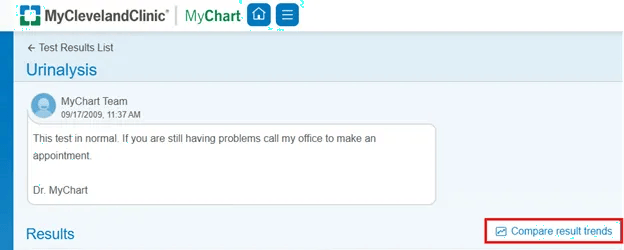
Image content: This image is available to view online.
View image online (https://assets.clevelandclinic.org/transform/6816dc26-860f-42a3-9962-bebef159d4ed/test-results-2)
Removing or correcting test results in MyChart
Once a result is released to MyChart, it stays in your medical record. The only way to remove it is to ask your provider to manually remove or fix that result.
Viewing radiology test results in MyChart
MyChart provides access to imaging reports — the radiologist’s written notes. You won’t see the actual pictures from tests like X-rays, CT scans or MRIs. If you want to view these files, you’ll need to request them.
How to view radiology images
We make it easy with our electronic MyImages request form. If you aren’t able to use the online form, you can fax a printable request form to 216.445.7598. Once we process your request, we’ll send a CD via UPS to your home address.
We don’t use MyImages in Florida. If you get care there, you’ll need to contact your Florida medical records team or your provider.
If you have questions about using MyImages, call 216.444.6606 or toll-free at 1.866.223.2273 ext. 46606.
Viewing Upcoming Tests and Procedures in MyChart
Your provider creates an order in MyChart when they decide you need a lab test, imaging study or another procedure. The order shows that the test has been approved and is ready to be scheduled or completed. It doesn’t mean the test has already been done.
Types of orders in MyChart
- Future: Tests to be completed later
- Standing: Series of the same test completed at regular intervals, such as once a month
How to view orders
To see either type of order in MyChart:
- Go to Menu.
- Select Upcoming Tests and Procedures.
This section shows tests that have been ordered but not yet completed. It may include laboratory work, imaging studies or other procedures. If your provider ordered a test, contact their office.
Things to know about orders
- Printed orders aren’t usually needed: At Cleveland Clinic, you don’t need a printed order. Outside facilities? Ask your provider for a copy. MyChart can’t print orders.
- Expected date matters: If your orders have an expected date, you should complete tests on or near the listed date. If there’s no date, you have around 60 days from the order date before it expires.
- Completed tests may still show: If results aren’t linked electronically, the order may remain. Contact your provider if you want it removed.